
Learning My Small Business Roblox how to get first delivery is the fastest way to understand its complete order cycle. The official game page lists design, production, packing, and shipping as the route to the milestone, so this guide walks through each click without skipping the setup details.
First Delivery Requirements
The First Delivery milestone unlocks when you ship a customer’s first physical package. The order must be produced rather than accepted and ignored, because a customer order does not become a completed delivery until its product has been designed, prepared, packed, and handed off through the shipping action.
According to the official My Small Business Roblox game page, the basic flow begins in the Design Studio, continues through printing and cutting, and ends with packing the order and selecting Ship. The same official page states that this achievement should occur naturally during the first session, although the exact interface may change with updates.
| Requirement | What the game expects | Common mistake |
|---|---|---|
| Active order | Accept or create an order to fulfill | Trying to ship with no order selected |
| Product copy | Have the required physical product ready | Leaving the item only in the design stage |
| Packaging | Place the product in an appropriate box | Selecting a box that does not fit |
| Shipping action | Confirm the final Ship choice | Opening a menu without completing it |
Start With a Customer Order
Open the order interface and choose a customer request that you can satisfy with the tools already available. Beginners should favor a simple product because each order can require multiple copies, and a complicated design may consume extra materials before the player understands the production loop.
Look for the order’s required product, quantity, and any optional customer preferences. If the request calls for a quantity greater than one, create and cut enough copies before moving to packing. Do not close the order panel merely to inspect your shop; leaving the order unfinished can make it harder to remember which product belongs in the box.
The game’s first-session structure gives you a natural practice run, but preparation still matters. A cleaner approach is to finish one product, print it, cut the required number of copies, and assemble one complete package before accepting additional work. That approach also makes errors easier to diagnose because every stage stays visible in sequence.
Confirm Every Production Stage
A successful package requires the item to become a physical, usable product. In the Design Studio, select or create the required design and confirm it. Then move the design into printing, collect the printed result, and use the cutting station to produce the necessary copies.
Printed product and cut product represent different stages, so completing one does not automatically complete the other. If the packing prompt says that a product is missing, retrace the order from Design Studio to Print to Cut. This check resolves most first-delivery stalls because the game expects a prepared physical item rather than only a saved design.
| Stage | Required action | Result to look for |
|---|---|---|
| Design | Create or choose the requested product | A confirmed design |
| Send the design through the printer | A printed sheet or item | |
| Cut | Process the printed material | A usable product copy |
| Pack | Place the product in a suitable box | A complete customer package |
| Ship | Confirm the shipment | First Delivery milestone |
First Delivery Step-by-Step
A successful first delivery depends on treating the game like a compact production line. Design, production, cutting, packing, and shipping form one linked sequence, and skipping an earlier stage causes the next menu to lack the required physical item. For example, once the cutting stage generates the specified shape, packing must contain the matching item before shipping can complete the order; the delivery counter and badge progress then update only after that final handoff.
Build the Product
Start with the exact product named on the order. Open the Design Studio, choose a suitable base or template, and apply only the features that are available to you. Early designs can look plain, but the delivery system cares about whether the result matches what the customer ordered.
Confirm the design and move it to the printer. If the printer interface asks for quantities, keep the number aligned with the order. Producing extra pieces is not harmful in principle, but it can waste materials that you will need for later orders. At this stage, efficiency matters less than completing the chain once without mistakes.
Print and Cut the Copies
Wait for the printed result, then collect it from the output area. Move the printed material to the cutting station and complete the cutting action. The game may display an animation while it processes, so avoid switching tasks until the station returns you to the available-actions state.
Community gameplay guides such as NoobBlox’s My Small Business guide show the same production-focused routine: prepare the design, obtain the physical product, and then move into the packing station. Treat community demonstrations as visual support because menus and reward interfaces can change between updates.
| Check | A healthy state | Fix for a stalled order |
|---|---|---|
| Design | Product exists and is confirmed | Redesign or select it again |
| Physical sheet is collected | Run the print action again | |
| Cut | Product is a separate usable copy | Send printed material to the cutter |
| Quantity | Enough copies exist for the order | Produce and cut additional copies |
| Selection | Correct product is active | Reopen the order and verify its name |
Pack the Order
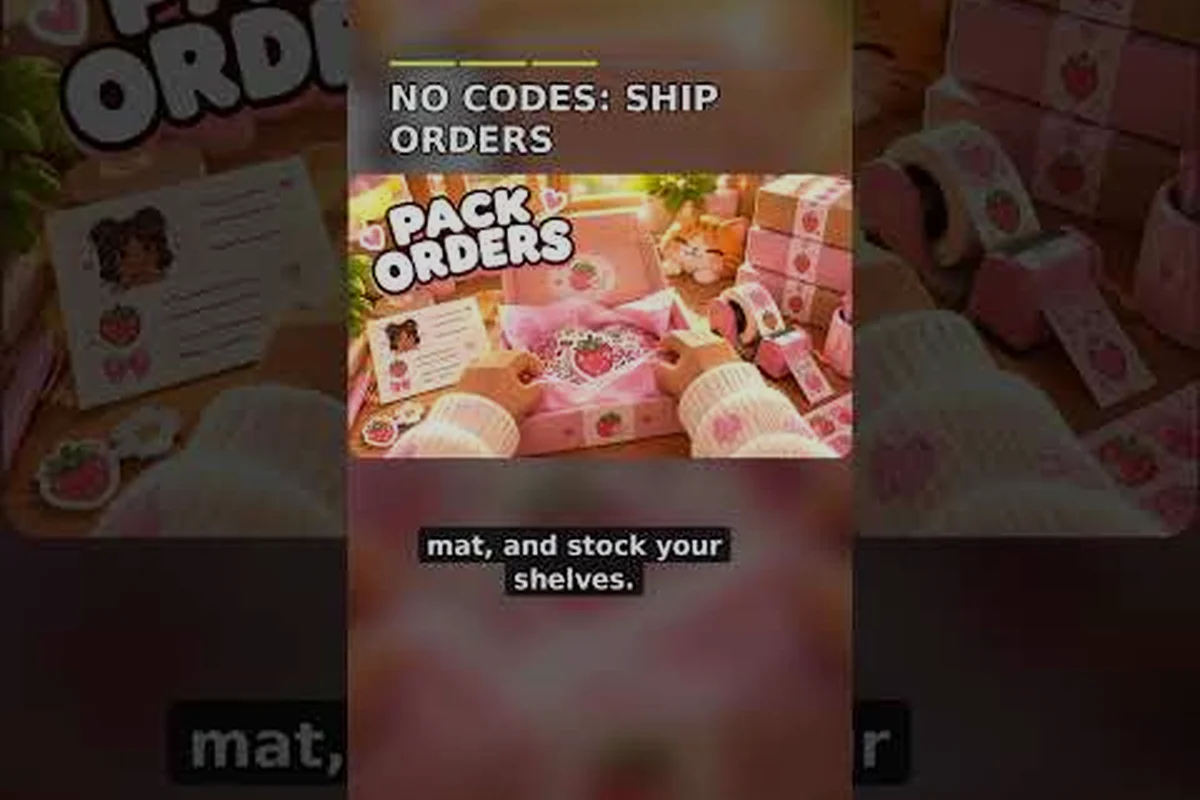
Open the packing interface after your product is ready. Choose a box with enough capacity for the requested quantity and all extras. Place the physical product inside, then add any requested goodies or finishing touches. A thank-you card may also be part of the order presentation, depending on the customer’s preferences and the current game version.
The box must match the shipment rather than merely look suitable. If a larger item is placed into a small package, or the product count does not match the order, the shipment cannot be finalized. Check the package screen for a valid Ship button and review the displayed contents before confirming anything.
Package completeness is more useful than decoration at this stage. A modest but accurate package satisfies the milestone, whereas a polished package built from the wrong product still does not count. If the customer requested multiple units, place the required count inside and compare the package summary with the original order.
Ship the Package
Select Ship in the completed package interface. This final confirmation is the action that records the delivery, so simply filling the box is not enough. After confirming, wait for the shipping animation or completion message and return to the order board to verify that the order no longer appears as active.
If the milestone does not appear immediately, move away from the packing interface and check the badge or achievements panel. Updates can move notifications, but the delivery itself should still be recorded once the package has been handed off. For broader locations in the interface, the My Small Business Roblox badge overview explains where milestone information appears.
Delivery Troubleshooting Guide
Most failed attempts involve an incomplete product, a quantity mismatch, or a missing final confirmation. Because the game is designed to teach the full business loop, its error messages may point to a stage rather than naming the exact missing object. Work backward from the shipping screen to isolate the problem.
| Symptom | Most likely cause | Corrective action |
|---|---|---|
| Ship option is unavailable | Product, quantity, or packaging is incomplete | Recheck every item against the order |
| Printing menu cannot start | No confirmed design is selected | Return to Design Studio and confirm one |
| Item cannot be packed | Required copy has not been cut | Print the design and cut the product |
| Package cannot be submitted | Wrong box or missing extras | Replace the box and complete the contents |
| Order remains active | Ship was never confirmed | Return to packing and select Ship |
Check the Product, Not Just the Design
A saved blueprint is not the same thing as a finished product. The cutting requirement is especially easy to overlook because the Design Studio may already display a convincing preview. Move to the cutting station, complete the action, and collect the result before trying to pack it.
Also verify that the item in your inventory resembles the order’s requested product rather than a related design. A candle and a decorative sign may occupy similar menu categories, yet only one matches the customer’s request. If you are unsure, reopen the order panel and compare the names rather than relying only on color or appearance.
Confirm the Correct Quantity
Multi-item orders expose quantity errors. If the customer wants three units, two physical copies will not complete the package even when both are the correct product. Count the copies in your inventory, count the slots shown by the box, and compare both numbers with the order before shipping.
Before confirming a delivery, count the physical product copies against the order quantity and the selected box’s capacity. For example, a three-copy order needs three physical copies placed in the box, not merely the correct product shown once in your inventory. Checking this prevents a short shipment and helps avoid wasting Robux or delaying your first delivery while the order is corrected.
- The design matches the customer request
- The required number of physical copies has been cut
- Every copy is placed in the selected box
- Requested extras are included
- The Ship button is available and has been confirmed
Determine Whether the Badge Is Missing
After a completed shipment, open the badge interface and look for First Delivery. If it appears there but not in the main menu, the problem is only where the notification is displayed. If it appears nowhere, confirm that the order has left the active list and that the Ship command was completed rather than canceled.
The developer’s official Future CEOs Roblox group is the best place to verify whether an interface or badge is currently being adjusted. Include the current screen name and what happened when you pressed Ship when checking for a known issue, but avoid assuming that every delivery problem is an update bug.
Badges and Reward Purpose
Badges record milestones in the business journey, so they mainly show what the player has accomplished rather than serving as the primary source of shop income. A completed delivery can unlock the First Delivery badge, while early participation may connect with the Welcome badge and repeated production with the First Masterpiece milestone.
The question of what are badges for has a straightforward answer: they document progress, provide a visible checklist, and sometimes mark access to cosmetic or milestone-related content. They should not be treated as guaranteed cash boosts, because a badge and a shop upgrade can serve different purposes even when both appear in the same progression interface.
Welcome, Delivery, and Masterpiece Milestones
The Welcome badge is associated with beginning the game’s business activity rather than shipping a package. The First Delivery badge comes later, once a physical customer order is completed. The First Masterpiece milestone is tied to producing a higher-quality or more advanced creation, so designing and making a basic item does not necessarily complete it.
These milestones create a natural progression because each one tests a different part of the My Small Business business loop. Start with the Welcome badge to learn the core stations and controls, then use a customer order to practice the First Delivery sequence: match the requested item, collect the correct quantity, pack it, and confirm the shipment. After the delivery is registered, work toward the First Masterpiece by creating a qualifying advanced product; its badge depends on production quality and the higher-level design requirements, not simply completing the first package.
| Milestone | Main action | What to focus on |
|---|---|---|
| Welcome | Start participating in the business loop | Review the core stations and controls |
| First Delivery | Ship one complete customer package | Match, count, pack, and confirm |
| First Masterpiece | Create a qualifying advanced product | Improve the design and production quality |
If you are checking My Small Business Roblox how to get welcome badge status early, complete the introductory activity and inspect the badge panel afterward. Because this entry is meant to reflect beginning participation, it may arrive earlier than First Delivery.
Do Badges Give Rewards?
Badges can acknowledge milestones, but players should not assume that do badges give rewards with a specific cash value or permanent income boost. The dependable reward is recognition through the badge system itself. Any additional benefit should be confirmed in the in-game interface because it can depend on the current version or event.
Community reports often describe achievements as collection goals rather than essential business upgrades. That distinction matters for a new shop: money, supplies, worker help, and better equipment usually affect your operating loop, while the badge records your progress. The badge progress overview explains how to monitor completed milestones without confusing them with shop resources.
Track Badge Progress Percentage
The exact badge progress percentage displayed for your account can vary with the number of badges you have earned, the interface layout, and whether the game is showing category-wide completion. Treat the number as a progress indicator rather than a precise measure of business performance.
A reliable self-check is to compare the completed badge icons with the milestone list, then confirm that each relevant action has been registered. For a broader checklist of every milestone, use the complete badge walkthrough to identify which remaining objectives still need action.
| Status | What it indicates | Practical response |
|---|---|---|
| Icon absent | Milestone has not registered | Complete the required action again |
| Progress partly filled | Objective is still incomplete | Review the exact requirement |
| Icon completed | Milestone is recorded | No repeated action is needed |
| Percentage changed | More badges are now complete | Compare icons to confirm the increase |
First Masterpiece Production Guide
The First Masterpiece objective is separate from the First Delivery milestone: it rewards a qualifying creation rather than simply shipping a package. Reaching it requires attention to product quality and the production requirements attached to that milestone. Completing a basic customer order can prepare your skills, but it does not guarantee the masterpiece status.
Improve the Product Design
Open the Design Studio and review the available materials, shapes, colors, and decorative features. A masterpiece is generally associated with a more advanced or carefully made product, so choose options that visibly raise the item’s quality instead of selecting the cheapest creation. The exact criteria may be updated, which makes the in-game requirement panel the authority.
Do not rush through the design stage simply because the order screen uses similar language. Read the masterpiece description, compare it with your current product, and ensure the finished item matches the required category. Player-made walkthroughs such as Kateleen’s Part 2 guide can provide a visual example of the production interface, although current requirements remain the deciding factor.
Use a Higher-Quality Material Path
Once the design is correct, produce it through the appropriate stations. Print the confirmed design, cut it, and inspect the result before attempting another material or finish. The game’s production flow rewards following the sequence, and a failed or interrupted cut can leave the player without a usable item.
| Improvement stage | Action | Check before moving on |
|---|---|---|
| Base choice | Select a suitable starting material | It matches the masterpiece requirement |
| Decoration | Add appropriate finishing features | The preview reflects the desired quality |
| Printing | Produce the confirmed design | A physical item appears |
| Cutting | Complete the required cutting action | The result is a finished product |
| Delivery or display | Use or ship the item as required | The milestone notification appears |
Keep First Delivery Separate
You can pursue both goals in one session, but their unlock conditions should not be blurred together. First Delivery cares about shipping a correct, complete order. First Masterpiece cares about creating an item that meets a higher standard. A customer order may provide a convenient target, but the milestone still depends on the product’s assigned status.
If the masterpiece icon does not appear, first confirm that the item was genuinely completed rather than merely designed. Then check whether its quality tier or required feature was missing. Finally, inspect the badge panel after leaving the design interface. This sequence prevents a polished preview from being mistaken for a registered masterpiece.
Badge Guide 2026
This badge guide for 2026 focuses on the early sequence that every new owner can verify in one session. Start with the introductory Welcome objective, complete the first package, and then use the available design options for First Masterpiece. Because the developer continues to adjust the interface, milestone names should be checked against the live badge panel.
Recommended Early-Session Order
Completing activities in a deliberate order makes missing steps easier to spot. Accept one order, produce its item, and ship it before experimenting with advanced designs. This gives you a confirmed understanding of production and packaging, which makes the masterpiece requirement much easier to test afterward.
| Sequence | Action | Verification point |
|---|---|---|
| 1 | Review the introductory business activity | Welcome badge appears |
| 2 | Accept a straightforward customer order | Product name and quantity are visible |
| 3 | Print and cut the required product | Physical copies are collected |
| 4 | Pack and ship the order | First Delivery badge appears |
| 5 | Build a qualifying advanced creation | First Masterpiece badge appears |
Avoid Repeating Common Errors
The most costly mistake is changing too many things at once. Pick one design, produce it once, and keep notes on every button used. If the result is rejected, change only the requirement that the game identifies instead of redesigning the entire process. This keeps resources available and makes the next attempt more efficient.
A second mistake is assuming a delivery badge guarantees a larger monetary reward. Shop income and badge completion are separate systems. The badge confirms that you mastered a milestone, while your business continues to grow through completed orders, improved products, and smart spending.
Build a Reliable Completion Loop
Use prepare, produce, package, prove, and ship as your repeatable routine. Prepare means matching the order, produce means completing the physical item, package means checking quantity and extras, prove means confirming the badge requirements, and ship means pressing the final action. This mental checklist reduces mistakes without needing outside assistance.
As a final confirmation, revisit the live badge interface after the shipment animation. Compare the completed icon with the requirement text and note any percentage increase. If everything is missing, replay only the unfinished stage; if the icon is present, your delivery was registered even though the notification did not appear at the original location.
Frequently Asked Questions
Does shipping the wrong product still unlock First Delivery?
No. The delivery milestone requires a completed customer package, including the requested product and quantity. If the selected item does not match the order, return to production, create the correct physical copy, replace the package contents, and confirm Ship again.
Can I earn the Welcome badge and First Delivery in the same session?
Yes. The Welcome badge normally reflects introductory participation, while First Delivery requires a fully completed shipment. Complete the opening activity first, then use the production sequence—design, printing, cutting, packing, and shipping—to fulfill one correct order. For example, if a customer requests one item, produce one finished copy, confirm its quantity, and ship it; the two milestones can be earned in the same session, but the shipment must be valid.
Do I need multiple cuts for every customer order?
Only when the requested quantity calls for multiple physical copies. One cut may be sufficient for a single-unit order, but a multi-item request needs enough finished copies. Check the order quantity before cutting and count the finished products again before packing.
Is First Masterpiece awarded for any delivered order?
No. A normal order demonstrates delivery, but First Masterpiece depends on meeting the separate creation requirement. Build an item with the required quality and features, complete its production process, and confirm that the new badge appears before treating the milestone as complete.