
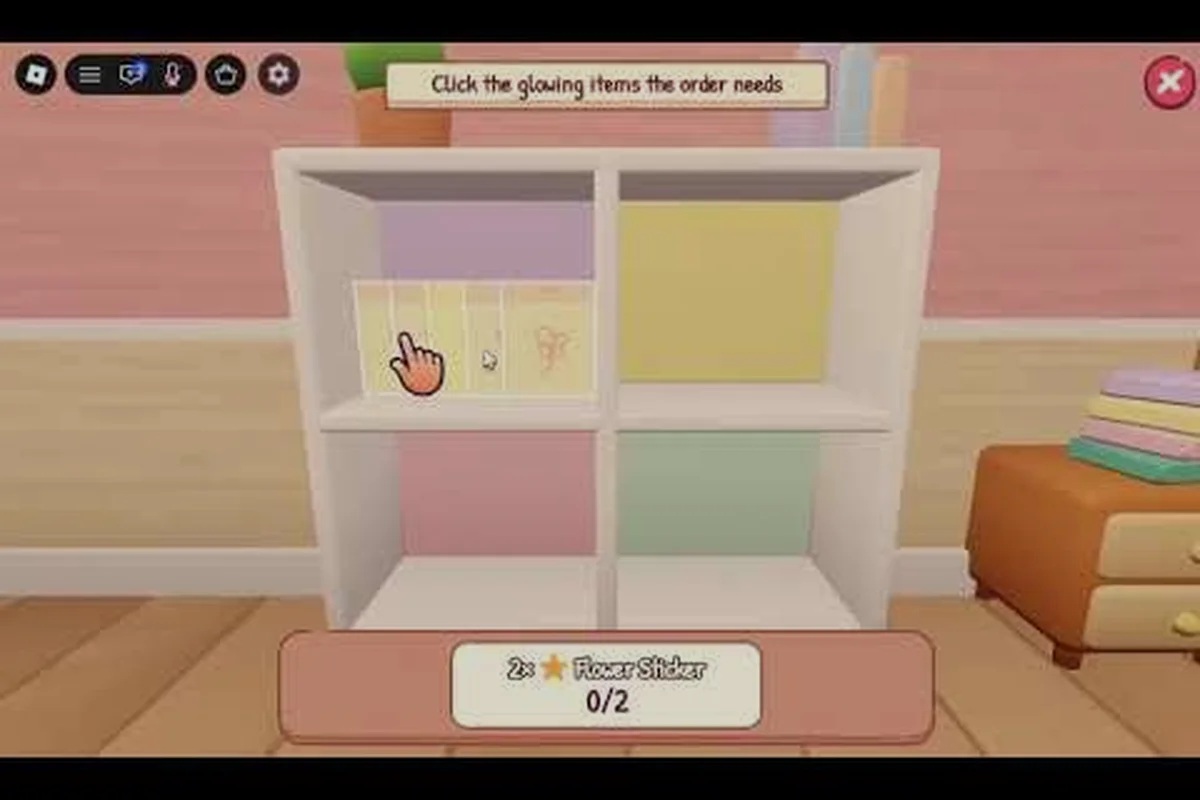
Learning the My Small Business Roblox tutorial matters because the opening minutes determine whether your shop feels manageable or overwhelming. In the My Small Business Roblox first 10 minutes, you can learn the core production loop, complete an order, and discover which systems deserve your attention first.
Tutorial: The Opening Shop Loop
The official My Small Business game page on Roblox outlines the central activity: design products, print and cut them, pack orders, add extras, and ship the finished package. That makes the first session feel less like a traditional tycoon and more like a hands-on production shop where each order advances you through a compact sequence.
The First 10 Minutes Checklist
This checklist gives you a clear order of operations before you begin experimenting with the rest of My Small Business. Working through the early-game loop in sequence helps you connect each production step to the next: the Design Studio turns a sketch into a printable product, the cutting and packing stages determine whether you can fulfill a clipboard order, and the reward screen confirms your progress before you take on another task. For example, preparing a small product batch first lets you test the production, packaging, and shipping mechanics without wasting materials on an oversized run.
- Inspect the shop and locate the Design Studio.
- Sketch a product and prepare it for printing.
- Print a small batch of copies.
- Cut the printed pieces into individual products.
- Read the first customer order from the clipboard.
- Choose an appropriate box and add the requested extras.
- Pack, finish, and ship the order.
- Check the reward screen and your next available task.
What to Do First in the Shop
The Design Studio is the best place to begin because every physical product in the shop depends on a workable design. Spend the opening moments learning how a sketch becomes a printable sheet, then make one uncomplicated product rather than attempting a large batch. A small test run teaches the interfaces quickly and reduces the amount of material you need to reprint if a setting is wrong.
The Order Clipboard provides a useful early target. According to the official game information, the clipboard is associated with a 15-coin purchase, so it may not be available immediately. Before buying it, complete enough of the opening task to learn the basic production chain and see which order details your current products can satisfy.
| Opening priority | Action | What it teaches | Beginner-friendly reason |
|---|---|---|---|
| 1 | Inspect the starter shop | Available stations and resource flow | Prevents missed prompts near the start |
| 2 | Make one simple design | Design Studio controls | Creates a repeatable foundation |
| 3 | Print one small batch | Print requirements and timing | Limits wasted materials |
| 4 | Cut the copies | Cutting interaction | Produces sellable inventory |
| 5 | Read an order | Order requirements | Shows which product to make |
| 6 | Pack and ship | Packaging sequence | Completes the main gameplay loop |
The opening should end with one fulfilled order and a clear understanding of the full cycle. If you can move from sketch to shipment without guidance, you know the central production mechanic well enough to expand. For broader systems such as progression rewards and new stations, the My Small Business Roblox progression guide can help you plan what comes after that first delivery.
Full Guide to Product Creation
Product creation is the core production skill in My Small Business. The sequence is straightforward—sketch, print, cut, and stock—but each station asks you to make a small decision. Your goal during the first session is not maximum output; it is developing a routine that you can repeat when orders become more demanding.
Sketching a Practical First Product
Begin with a basic shape and a design you can recognize at a glance. The useful question is whether you can quickly identify the front and back of the printed item, because unclear shapes may slow down both cutting and packing. After each print, compare the physical result with your original sketch and note which choices created the most readable result.
| Design choice | Simple approach | More advanced approach | Early-game impact |
|---|---|---|---|
| Shape | Basic, recognizable outline | Multi-part outline | Affects cutting speed and clarity |
| Color | One strong color | Several coordinated colors | May increase material or crafting time |
| Detail | Minimal decoration | Repeated pattern | Helps distinguish product copies |
| Batch size | One sheet or small group | Larger production run | Balances output against waste |
| Theme | Simple everyday item | Branded collection | Supports a coherent shop identity |
Printing, Cutting, and Inventory
Printing creates the material you will cut into products. Rather than switching immediately to a large run, print enough to satisfy one order or a small number of nearby orders. That approach makes it easier to identify where your workflow slows down, whether the delay comes from the machine, the cutting station, or your own movement between stations.
Cutting then turns printed sheets into individual items. Stay near the cutting area until the process completes, because a short stop can create a gap between production and packing. Once you understand the timing, you can plan a smooth movement pattern: print at one station, cut at the next, and place finished products in storage before collecting the next order.
The production chain is the lesson to carry into your second session. The My Small Business Roblox products reference is useful for comparing product categories, while your first-session goal should remain simple: make the same item correctly twice in succession.
A Consistent Print Batch Routine
A dependable routine starts with a fixed production loop: check the order board, confirm the product and packaging requirements, then move through Design Studio printing, the cutting station, and inventory storage without leaving unfinished stock on a work surface. For example, if the next order requires 12 bottle-shaped products, print one small batch, cut every piece, and place the completed items in the storage area before accepting another order. This keeps the order board accurate, prevents Design Studio or cutting bottlenecks from accumulating, and makes it easier to spot whether a delay came from the order wording, missing packaging, or an unfinished batch.
-
Read the next order and identify its required product.
-
Open the Design Studio and select a matching product.
-
Print the smallest practical batch.
-
Move to the cutting station before the printed pieces are needed elsewhere.
-
Cut all pieces into separate products.
-
Store the finished inventory in an easy-to-reach location.
-
Return to the order board only after the product is ready.
This sequence creates a predictable transition between stations. It also makes errors easier to diagnose. If you cannot find the right product, check the order wording; if you have the product but cannot pack it, check the required box or extra item; if your inventory is empty, review whether printing and cutting were both completed.
First 10 Minutes: Production and Packing
The first ten minutes should contain one complete business cycle: prepare a product, convert it into stock, package an order, and ship it. The exact clock can vary because other players may be active and because you may pause to inspect the interface, but completing the loop matters more than rushing through a timer.
Moving from Product to Package
The packing stage adds decisions that were not necessary during basic production. A customer can specify a product quantity, a box size, or additional goodies such as packaging and a thank-you card. Read each requirement before selecting materials, because a correctly made product can still produce an incomplete shipment if the box or extras do not match.
| Packaging element | How to approach it | Common early mistake |
|---|---|---|
| Product count | Match every visible order requirement | Packing only one of several requested copies |
| Box size | Use the option that fits the quantity | Choosing a box based on appearance rather than capacity |
| Goodies | Add requested extras before closing | Finishing the package too early |
| Thank-you card | Check whether the order requests one | Assuming it is always included |
| Shipping | Confirm all visible requirements | Shipping before packing is fully complete |
Reading Orders Efficiently
Start at the top of the order and work downward. Identify the product, quantity, box, and extras in sequence, then gather everything before opening the packing interface. This reduces backtracking and makes it easier to catch a missing requirement. It also creates a cleaner rhythm once you begin handling several orders at once.
Community gameplay guides frequently emphasize the same beginner pattern: make a simple product, fulfill the visible request, and reinvest the proceeds into the shop. Treat those observations as practical guidance rather than fixed rules, because prices, rewards, and station access may change with updates. The authoritative reference for current game details remains the official Future CEOs Roblox group.
Handling Your First Reward
After shipping, check what changed. The reward may unlock progress, offer a new task, or provide currency for the next purchase. Read it before walking away, because this is where you learn how the business side of the game connects to the physical production side. If the reward depends on a repeated action, completing one more order is usually more useful than immediately exploring every decorative option.
| Checkpoint | Look for | Reason |
|---|---|---|
| Right after shipping | Coins or cash added | Confirms the order paid out |
| Inventory panel | New product or supply count | Shows what was consumed or earned |
| Quest panel | Unlocked task | Indicates the next progression goal |
| Shop stations | Newly available machine | Reveals the next production stage |
| Shop controls | Upgrade option | Identifies a potential long-term investment |
The important result is not merely earning a reward. It is understanding what the reward enables. If it unlocks another product, return to the Design Studio; if it improves a station, test the station on a small batch; if it advances a quest, finish the associated action before moving to another activity.
What to Do First After the First Order
Once you have shipped an order, resist the urge to purchase everything visible. The best next step is determined by your weakest point in the production loop. If cutting takes too long, improve that part of your routine. If you lack a suitable product, create a broader design. If orders are unclear, use the clipboard when it becomes affordable.
Choose Your First Expansion
Your first expansion should support a repeatable sale rather than an isolated collection. Buying a decorative object may be enjoyable, but it does not necessarily increase throughput. A production station, storage solution, or tool that reduces downtime generally has a clearer effect on the business loop.
| Current problem | First useful expansion | Why it fits |
|---|---|---|
| Orders exceed production speed | Better production equipment | Supports higher order volume |
| Finished products crowd the shop | Storage solution | Creates a cleaner working area |
| A required item cannot be made | Relevant design or supply access | Expands your product range |
| Orders are difficult to interpret | Clipboard-related purchase | Makes requirements easier to track |
| Production is accurate but slow | Cutting or workflow improvement | Removes a recurring bottleneck |
The Order Clipboard is a particularly relevant early purchase because it costs 15 coins according to the official game page. If you have enough money and order tracking still feels confusing, it can turn the shop into a more organized production business. Otherwise, save it until the basic loop is familiar enough that the extra information will have practical value.
Keep the Workstation Layout Consistent
Place your supplies and finished products in consistent locations. Moving a box across the shop every time you need it may waste several seconds per order, and those seconds compound during a busy session. A simple zoning system can reduce mistakes: raw materials near printing, cut products near storage, and packaging supplies near the packing station.
| Shop zone | Ideal contents | Reason for placement |
|---|---|---|
| Printing area | Unused designs and necessary materials | Supports quick batch creation |
| Cutting area | Printed sheets awaiting conversion | Reduces idle time between steps |
| Storage | Finished products grouped by type | Supports rapid order matching |
| Packing area | Boxes, extras, and cards | Keeps final assembly together |
| Review area | Shipped orders and rewards | Prevents missed progression notifications |
As your business grows, review which upgrade helps the most. A larger facility can increase the number of products you manage, but a well-arranged workflow matters just as much because a bigger operation does not help if items are lost between stations. The My Small Business Roblox upgrade reference can help you compare practical purchases instead of buying randomly.
How to Start a Better Second Session
A good second session begins with a short review of the first. Check your money, supplies, unfinished orders, and upgrade options before returning to the Design Studio. This two-minute audit identifies the next objective and prevents you from repeating work that is no longer necessary.
The Repeatable Startup Checklist
At the start of every business cycle, check your unlocked products, available packaging, current cash, and the active order-board requirements before committing resources. For example, if a furniture order requires two tables, one box, and a specific accessory, compare its payout with the materials already on hand rather than choosing the largest reward automatically. This early My Small Business setup prevents profitable-looking orders from reducing your cash to zero, especially during the crucial first 10 minutes when startup cash and equipment upgrades are limited.
-
Collect rewards and inspect the order board.
-
Determine which current order offers the highest practical value.
-
Make the required product in a small batch.
-
Print, cut, and store the finished copies.
-
Gather the specified box and extras.
-
Pack and ship every order you can complete cleanly.
-
Use the earnings to remove one current bottleneck.
-
Repeat the cycle with a slightly larger batch.
Product Strategy for Early Growth
A small product line is usually easier to manage than many designs. If two or three products satisfy most early requests, you can reuse familiar settings, reduce the need to consult menus, and become faster at moving between stations. Add a new design when an order requires it or when your current catalog no longer fills a useful role.
| Strategy | Benefit | Limitation |
|---|---|---|
| Repeat one basic product | Builds muscle memory | May not satisfy every order |
| Maintain two related products | Covers more requests | Requires slightly more attention |
| Test many designs | Encourages creative play | Can slow early production |
| Follow the order board | Focuses effort on demand | Leaves less room for experimentation |
| Produce a mixed batch | Prepares for future orders | May create excess inventory |
Comparing Your First Two Runs
The second run should be faster and more deliberate than the first. Track the number of steps you remember, the time lost looking for supplies, and whether you packed the correct extras. You do not need a stopwatch for every action; a rough comparison is enough to reveal whether your shop layout and routine are improving.
The My Small Business Roblox beginner guide can help with broader controls and objectives, while this tutorial focuses on the production sequence. Keep notes on one specific problem each session. Fixing a single recurring issue is more valuable than making several vague changes that may not improve your workflow.
Tutorial: Mistakes That Slow New Players
Most early mistakes come from skipping the order details or treating the shop as a collection of unrelated minigames. The objective is a connected chain, and every station contributes to the final package. Slow down whenever you are unsure whether an action has registered, especially after printing or cutting.
Frequent Early Errors
| Mistake | Result | Correction |
|---|---|---|
| Printing before the design is ready | Wasted paper or materials | Confirm the visible sketch first |
| Cutting an incomplete sheet | Fewer usable products | Wait for the cutting prompt |
| Packing from memory | Missing quantities or extras | Re-read the order |
| Closing the box too soon | Unfinished shipment | Check every line before shipping |
| Buying unrelated items early | Less money for key tools | Upgrade the current bottleneck |
| Leaving orders unread | Missed requirements or rewards | Check the clipboard each session |
| Moving randomly between stations | Lost time and overlooked stock | Establish fixed storage zones |
A Quick Self-Check Before Shipping
Use a three-question check before you confirm a shipment: Is the product correct? Is the quantity correct? Are the box, goodies, and card correct? If one answer is no, reopen or adjust the package rather than hoping the game will compensate. This habit prevents wasted materials and makes order completion feel deliberate.
Frequently Asked Questions
What should I make first in My Small Business Roblox?
Make one simple, recognizable product that matches an available order. A small batch lets you test sketching, printing, cutting, and packaging without wasting too many materials. Once you complete one shipment, repeat the process and only then increase the batch size or unlock additional designs.
How do I finish an order in the first ten minutes?
Read the order, make its required product, print and cut the copies, then gather the requested box and extras. Place everything into the packaging interface and confirm each visible requirement before shipping. After delivery, check your inventory and reward panel so you do not miss progression.
Should I buy the Order Clipboard early?
The official game page lists the Order Clipboard at 15 coins, making it affordable for many starting shops. Buy it when you need clearer order tracking or have enough money for essential production tools. During the very first order, learning the normal workflow may still be enough.
What is the best beginner production method?
Use a small, repeatable batch and keep supplies in fixed locations. Make the same product for consecutive compatible orders, cut them before starting unrelated work, and pack orders only after checking the quantity and extras. This approach reduces waste while teaching every station quickly.
How do I choose my first shop upgrade?
Upgrade the part of the process that causes the most delay, not simply the first option on the screen. More storage helps clutter, stronger equipment helps production, and order tracking helps unclear requirements. Compare costs and effects, then test whether the purchased upgrade creates a measurable improvement.